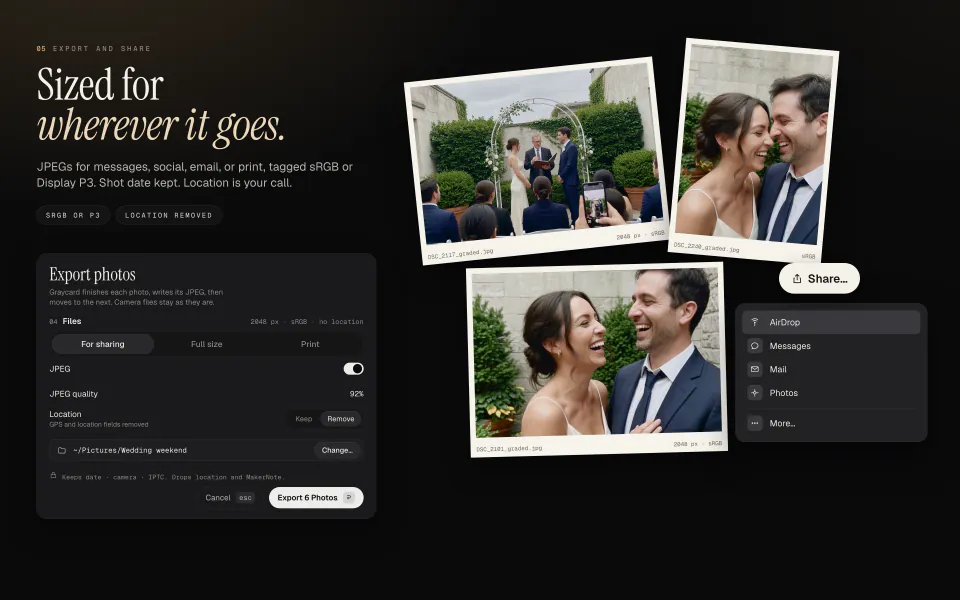
In short
Five steps, most of them one key.
- Open a card or folder with ⌘O.
- Run Auto-cull with ⇧⌘K, and review what it sets aside.
- Mark your favorites with P, and compare a burst with C.
- Check the color, and give a run one look with ⇧⌘C.
- Export with ⇧⌘E, choose For sharing, then press Share.
Graycard reads your photos where they are, and it never changes, moves, or deletes an original. Your first 80 photos are free to export.
01Open a card or folder
Press ⌘O and choose the card, drive, or folder, or drop it on Graycard’s window. Folders inside it open too. Nothing is copied into a library: Graycard keeps a bookmark to the folder and reads the files where they are. A RAW and a JPEG or HEIF with the same name are one photo, finished from the RAW.
If the photos are on a card or a drive, keep it plugged in while you work. Unplugged, the shoot shows as offline in the sidebar. Plug it back in, choose Reconnect, and pick the same folder, and your marks are still there.
Each shoot can have its own window: press ⌘N, or ⌘-click a shoot in the sidebar.
02Let Auto-cull set aside the misses
Press ⇧⌘K, choose how strict to be (Gentle, Balanced, or Strict), and press Start. Auto-cull reads each photo’s preview on your Mac, looking for blur, closed eyes, bad exposure, and the extra frames of a burst, and the counts update as it goes.
Press Review to see every photo it would set aside, with its reason on it. Keep (K) leaves a photo you still want unmarked. Then mark the rest as rejected. Nothing is deleted, and ⌘Z undoes it.
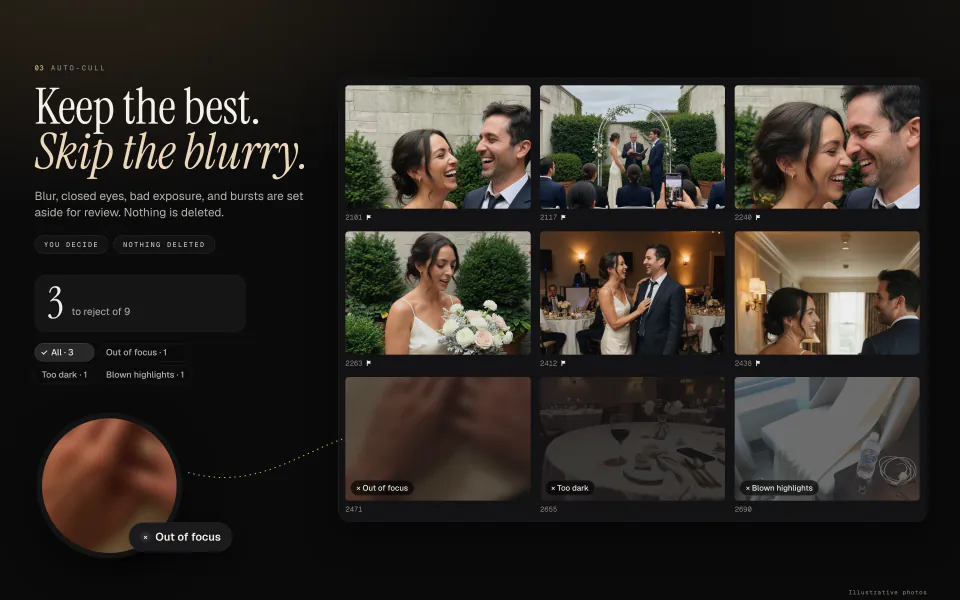
Every check can be tuned or turned off on its own: how Auto-cull works goes through them.
03Mark the keepers
Marks work from the keyboard, in the grid or with a photo open, and Graycard moves to the next photo after each one.
| Key | Mark |
|---|---|
| 0–5 | Stars |
| P | Pick |
| X | Reject |
| U | Unflag |
| E | Exclude from export |
All, Picks, Unmarked, and Rejected sit on the bar above the grid, so you can look at one kind at a time.
For a burst, select its frames and press C. Survey puts up to nine side by side: the arrows choose, Return opens the one in focus, and Esc goes back.
04Check the color
Graycard Auto finishes every photo on its own: it balances faces, tone, and color, and the result stays natural. To change a photo, double-click it, or press ⌘2, to open it in Photo. It shows split, as shot on the left and finished on the right, and holding Space shows it as shot.
- Pick a look and its intensity in the inspector on the right.
- Press Z to check focus at 100%, and J to see clipped highlights and shadows.
- To give a run of photos one look, select them with the one you finished, and press ⇧⌘C.
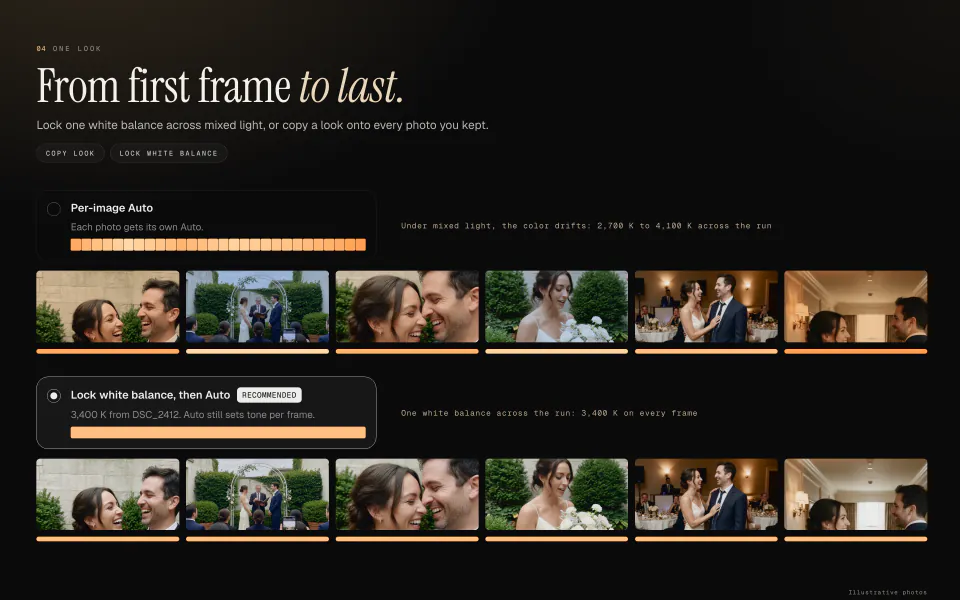
Under mixed light, such as a day that moves from shade to window light, Auto sets the white balance again on every photo, and a run can drift. Set the temperature on one photo from that light, select the run, and in the export sheet choose Lock white balance, then Auto. Every photo uses that temperature, and Auto still sets the tone.
06The keys, in one place
| Action | Keys |
|---|---|
| Open a folder, new window | ⌘O ⌘N |
| Auto-cull | ⇧⌘K |
| Stars, pick, reject, unflag | 0–5 P X U |
| Exclude from export | E |
| Survey | C |
| Open a photo, back to the grid | ↩ Esc |
| As shot while held, 100%, clipping, crop | Space Z J R |
| Copy look, reset look | ⇧⌘C ⇧⌘R |
| Export, export again | ⇧⌘E ⌥⇧⌘E |
| Grid, Photo, Exported | ⌘1 ⌘2 ⌘3 |
| Job History, Help, Settings | ⌥⌘J ⌘? ⌘, |
The support page has the common fixes, and Help (⌘?) in the app has every menu’s keys.