In short
Four checks. You decide.
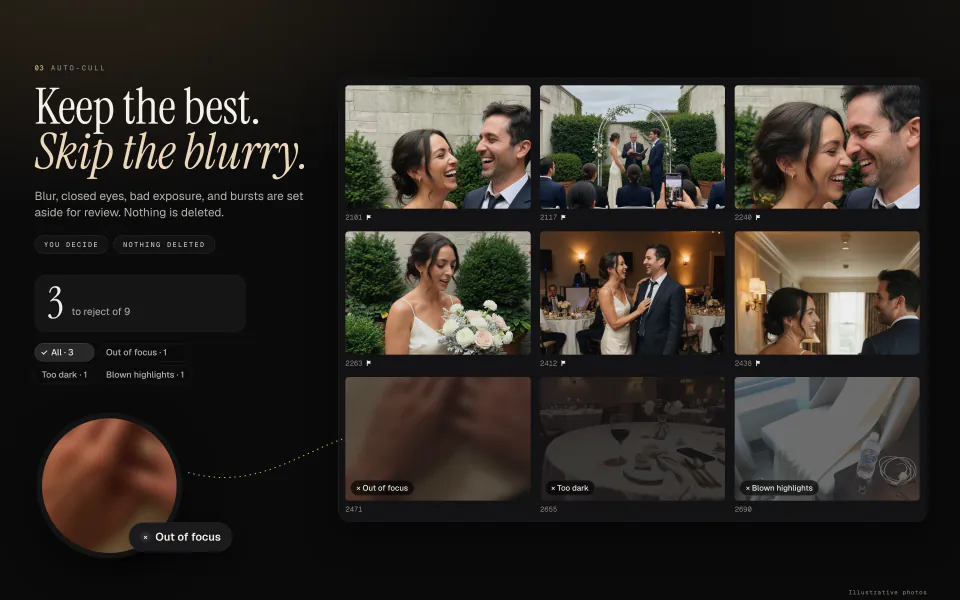
Auto-cull is Graycard’s first pass over a shoot. Press ⇧⌘K, and it reads each photo’s preview on your Mac and sets aside the frames that are out of focus, have closed eyes, are badly exposed, or are extra frames from one held shutter.
It suggests, and you decide. You see every photo before it is marked, its reason sits on it, and nothing is deleted.
01The four checks
| Check | What it looks at | The reason on the photo |
|---|---|---|
| Out of focus | The sharpest part of the photo | Out of focus |
| Eyes closed | Both eyes on the main face; a turned face is left alone | Eyes closed |
| Exposure | Blown highlights, or a photo dark through and through | Blown highlights, Too dark |
| Burst | One held shutter; photos more than a fraction of a second apart stay separate | Burst |
Out of focus
The check scores the sharpest part of the frame, not the face. A face is mostly smooth skin, so scoring focus there would mark sharp portraits as soft. A portrait with sharp eyes and a soft background passes, and a frame with nothing sharp in it is set aside.
Eyes closed
The check looks at both eyes on the main face, the largest in the frame, and leaves a face turned away alone. For a group, turn on Only when everyone blinks: then a photo is set aside only when every main face in it has its eyes closed.
Exposure
Blown highlights marks a frame where too much of the picture has clipped to white. Too dark marks a photo that is dark through and through, not one with deep shadows in a bright scene.
Burst
A burst is one held shutter: frames taken a fraction of a second apart. A sequence of similar pictures taken seconds apart is not a burst, and its photos stay separate. In each burst, Auto-cull keeps the best frame and sets aside the rest, and Keep per burst keeps up to five. Turn on Pick the best photo of each burst, and the best frame that passed the other checks is marked as a pick too.
02How strict
Gentle, Balanced, and Strict set all four checks at once, and every check starts at Balanced. Gentle flags less than Balanced or Strict. Under Fine-tune each check, every check has its own strength and its own switch, and the strictness shows Custom once you change one.
For bursts, the strength sets how far apart two frames can be and still count as one burst, from a fast drive to a slow one. It never reaches a posed sequence.
With several photos selected, Auto-cull can read just the selection or the whole shoot. Keep my own marks is on from the start, so a photo you already marked by hand stays as you marked it.
03What it reads
Auto-cull reads the preview the camera saved in each file, not the full RAW. A preview is smaller than the RAW, so for the frames that matter most, open the photo and press Z: that’s a true 100% view from the RAW itself.
Everything Auto-cull measures stays on your Mac. It saves its face measurements for each shoot in Graycard’s own folder, and nothing is uploaded.
04Review, then mark
Press Review, and each photo Auto-cull would set aside comes up with its reason. Keep (K) leaves one unmarked, and Mark as rejected marks the rest. After that, the Rejected filter on the bar shows them, U unflags one, and P picks it.
- Cull › Reset Auto-cull drops Auto-cull’s flags and leaves the marks you set yourself.
- Cull › Clear Rejects also clears rejects you marked.
- ⌘Z undoes either.
A rejected photo stays in its folder, untouched. Rejects are skipped on export while Skip rejected is on, and your marks travel with the exported photos as XMP ratings and labels. For the whole of a first shoot, from opening a folder to sharing, read how to use Graycard.