The short answer
Lightroom is for editing each photo. Some shoots only need finishing.
Lightroom is Adobe's photo editor and library. It has masks that find a subject, a sky, or a person, tools for retouching, and your photos on your phone, your computer, and the web, and it comes with an Adobe plan that renews. If you only need a few RAW files as JPEGs, Preview and Apple Photos do that on any Mac at no cost. Graycard does one job: it opens the folder from a shoot, sets aside the misses, finishes the color of every keeper, and exports the whole shoot in one pass. It has no masks and no retouching brushes.
01What Lightroom does
Adobe makes two apps with the name.
- Lightroom works on phones, tablets, computers, and the web. When you add photos, Adobe's help says it "copies the imported photos and uploads the full-resolution originals to the Cloud". Its Local tab opens photos on your computer without adding them.
- Lightroom Classic runs on Mac and Windows and keeps a catalog of your photos. Of its Add import, Adobe's help says: "Keeps the photo files in their current location."
Both edit by hand, with controls for exposure, color, and more, and with masks for parts of a photo. Lightroom Classic can start many photos at once: select them and click Auto Tone, which applies automatic settings for exposure, blacks, brightness, and contrast, or apply a develop preset. Its Assisted Culling selects photos by subject focus, eye focus, and open eyes, and rejects photos with exposure issues and misfires.
02Where Lightroom is ahead
For a lot of what photographers do to a single photo, Lightroom has tools Graycard doesn't have at all.
- Local edits. Masks select the subject, the sky, the background, objects, or people, down to hair, clothes, and teeth, and brushes and gradients cover the rest. Graycard's changes apply to the whole photo.
- Retouching. Adobe lists Quick Actions that retouch skin, remove blemishes, and whiten teeth, and Dust Removal for sensor dust. Graycard has no retouching brushes.
- More places to work. Lightroom runs on phones, tablets, and the web as well as computers, and Lightroom Classic runs on Windows. Graycard is a Mac app, with no iPhone or iPad version.
- A library for years of photos. Lightroom Classic's help covers keywords, collections, face recognition, maps, photo books, and slideshows. Graycard keeps no library: it reads each shoot's folder where it is.
03What Graycard does
Graycard is made for the whole folder at once, for people who would rather not edit photo by photo.
- Open the card or folder with ⌘O. Nothing is imported, copied, or uploaded, and a RAW and its JPEG count as one photo.
- Run Auto-cull (⇧⌘K). Blurry, eyes-closed, badly exposed, and burst photos are set aside for your review, and nothing is deleted.
- Export (⇧⌘E) with For sharing, Full size, or Print. Graycard Auto balances faces, tone, and color on each photo as it is written.
To change a photo, open it. Temperature, tint, exposure, contrast, highlights, shadows, whites, blacks, vibrance, saturation, twelve looks with an intensity slider, and crop and straighten all work on the whole photo. With several photos selected, the sliders change all of them, and Copy look (⇧⌘C) gives a run of photos the same finish. If you have Camera Raw presets (.xmp), Import Style reads their temperature, tint, exposure, and global tone sliders and skips curves, HSL, grain, and profiles, so the look won't match Lightroom's.
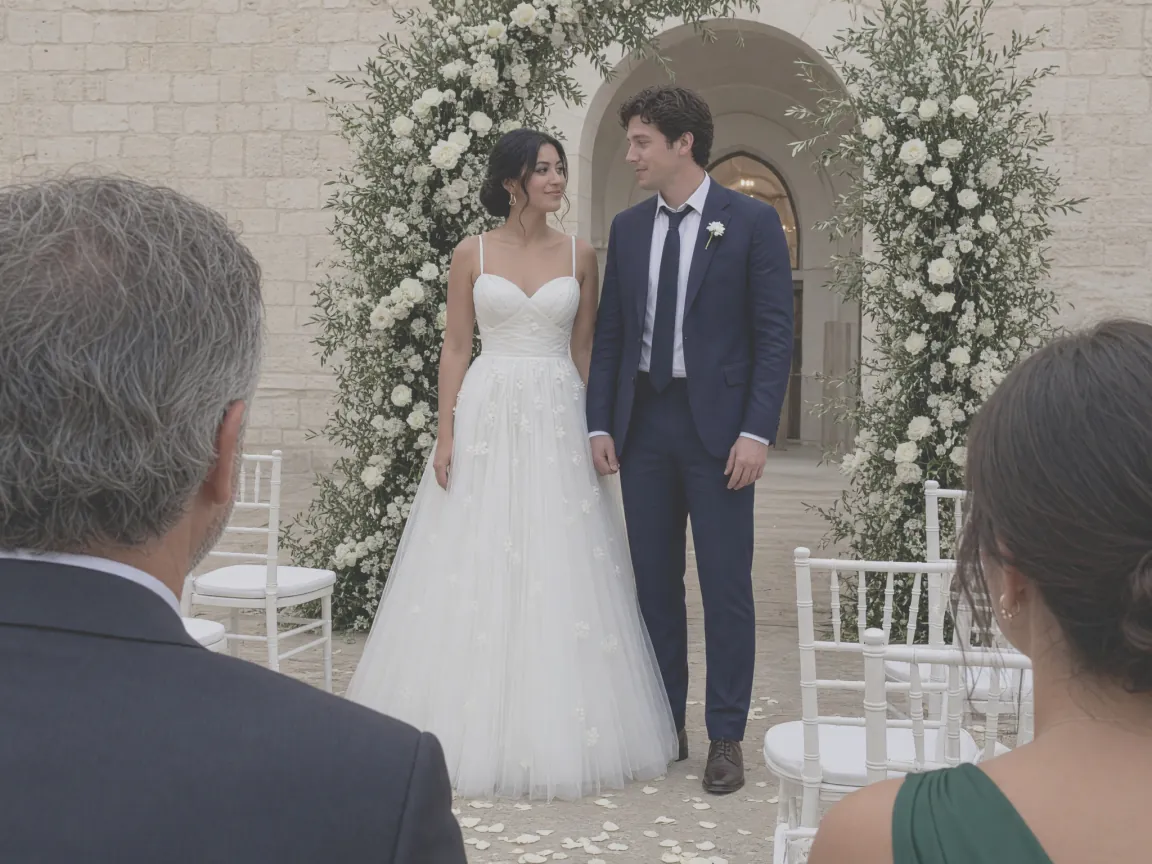
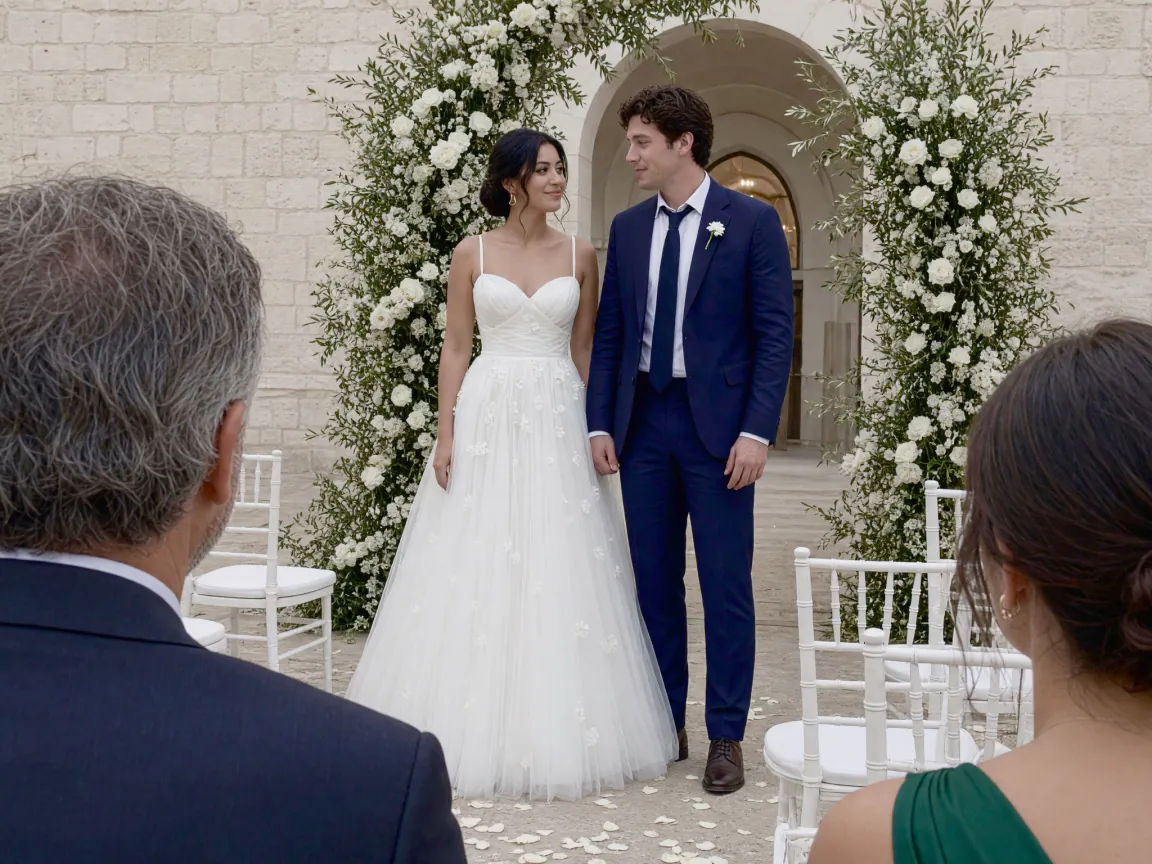
The camera files stay as they are. Each export writes new files: JPEGs tagged sRGB or Display P3, an XMP sidecar with your ratings and white balance, and, with Print, a 16-bit TIFF if you turn it on.
04Side by side
| Feature | Lightroom | Graycard |
|---|---|---|
| Runs on | Mac and Windows, plus phones, tablets, and the web | Mac only, macOS 26 or later |
| Your photos | Lightroom uploads the originals to Adobe's cloud; Lightroom Classic keeps a catalog | Read where they are, with no library; nothing uploaded |
| Culling | Assisted Culling: subject and eye focus, open eyes, exposure, misfires | Auto-cull: blur, closed eyes, exposure, bursts |
| Many photos at once | Auto Tone and develop presets | Graycard Auto on every photo; one look for a run |
| Masks and brushes | Yes | No: changes apply to the whole photo |
| Retouching | Skin, blemishes, teeth, sensor dust | No |
| How you pay | An Adobe plan that renews; 7-day free trial | First 80 photos free; then monthly, yearly, or Lifetime |
05How you pay
Adobe sells Lightroom and Lightroom Classic as plans that renew, with a 7-day free trial, and its plans page lists no one-time purchase. The older Lightroom 6 can't be downloaded anymore: Adobe ended that on December 31, 2023, and points its users to the Photography plan. If a membership ends, Lightroom Classic still opens its Library, Import, and Export, but the Develop and Map modules and Edit In stop working until you subscribe again.
Graycard is free to download, with every tool. Your first 80 photos are free to export, and exporting those photos again stays free. Graycard Pro removes the limit: monthly or yearly, which renew until you cancel, or Lifetime, one payment with no renewal. Every plan supports Family Sharing. The prices are on the home page, and the Mac App Store shows yours before you buy. For other apps you can pay for once, or not at all, read a RAW converter for Mac without a subscription.
06Which to use
- Masks, retouching, or your photos on a phone and on Windows: Lightroom.
- A whole shoot culled, finished, and ready to share, on a Mac: Graycard.
- A few RAW files you just need as JPEGs: Preview or Apple Photos, as in RAW to JPEG on Mac.
- Both: Graycard for the whole shoot, then Lightroom for the few photos that need a mask. Graycard never changes the camera files, so they are still there for Lightroom.
Graycard reads RAW from Sony, Canon, Nikon, Fujifilm, OM System, Panasonic, Pentax, Samsung, Leica, Hasselblad, and Phase One, plus DNG, JPEG, and HEIF. It runs on your Mac, and nothing is uploaded.
07Sources
Each source was opened and checked on November 3, 2026. Quotes are exact.
- Adobe, "Compare Lightroom plans". adobe.com. Lightroom's plans and the 7-day free trial.
- Adobe Help, "Add photos to Lightroom". helpx.adobe.com. Added photos are copied and their originals uploaded; the Local tab.
- Adobe Help, "Import photos from a folder on a hard drive". helpx.adobe.com. The Add import.
- Adobe Help, "Use the Quick Develop panel". helpx.adobe.com. Auto Tone and develop presets on several photos.
- Adobe Help, "Select best photos with Assisted Culling". helpx.adobe.com. What Assisted Culling selects and rejects.
- Adobe Help, "Masking tool", Lightroom Classic. helpx.adobe.com. The masks, brushes, and gradients, and the help's contents.
- Adobe, "Explore Lightroom features". adobe.com. Quick Actions and Dust Removal.
- Adobe Help, "Lightroom Classic technical requirements". helpx.adobe.com. Mac and Windows.
- Adobe Help, "Develop module, Map module, and Edit In stop working". helpx.adobe.com. What Lightroom Classic keeps after a membership ends.
- Adobe Help, "End of Support | Lightroom 6 Downloads and Syncing". helpx.adobe.com. Lightroom 6 downloads ended on December 31, 2023.
- Mac App Store, "Graycard: RAW Photo Converter". apps.apple.com. The free photos, the plans, Family Sharing, and what Graycard doesn't do.